Setting Up a Scheduled Refresh in the Tableau Online
How to set up a scheduled refresh in the Tableau Online for a data extract created using the Daexus Catalyst Connector and
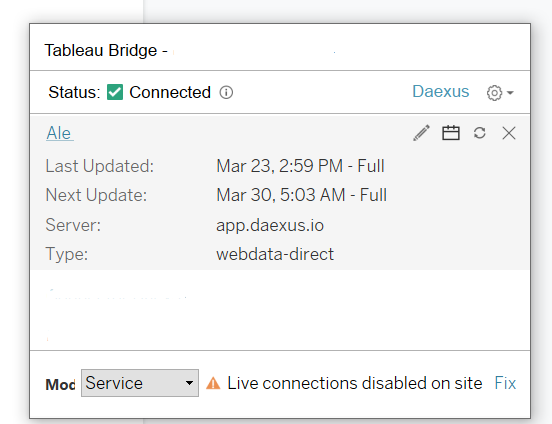
Tableau Bridge
You’ll need to download and install Tableau Bridge from Tableau, and login with your Tableau Online credentials. This is a one-time process.
Requirements:
- Daexus Catalyst credentials (Server Plan) — See here how to sign up
- Tableau Online access
- Tableau Bridge (running as a service):
- download the latest version from Tableau’s website
- install the app
- login with your Tableau Online credentials
- run Tableau Bridge in service mode
We went for a basic query in Adobe Analytics.
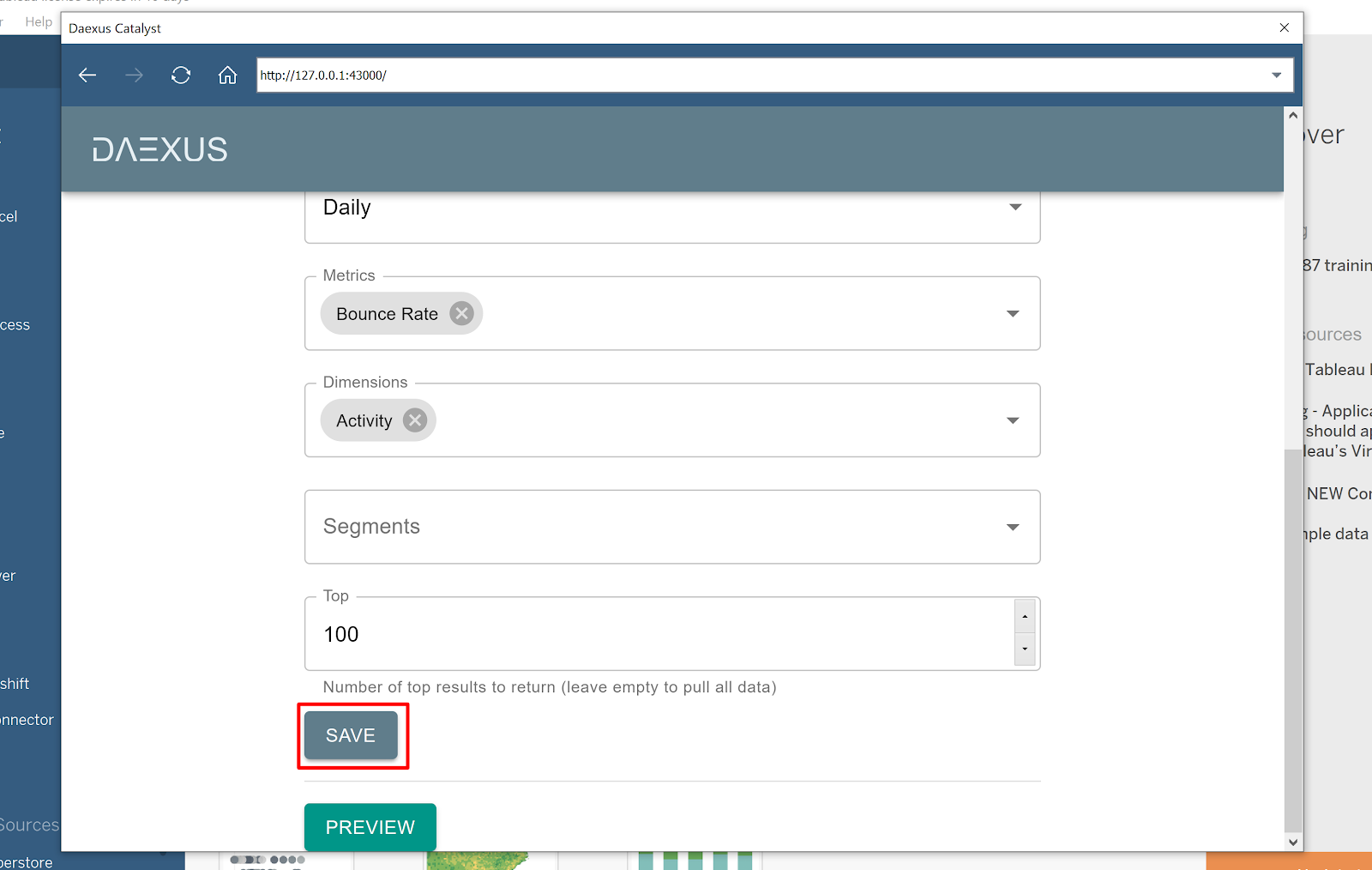
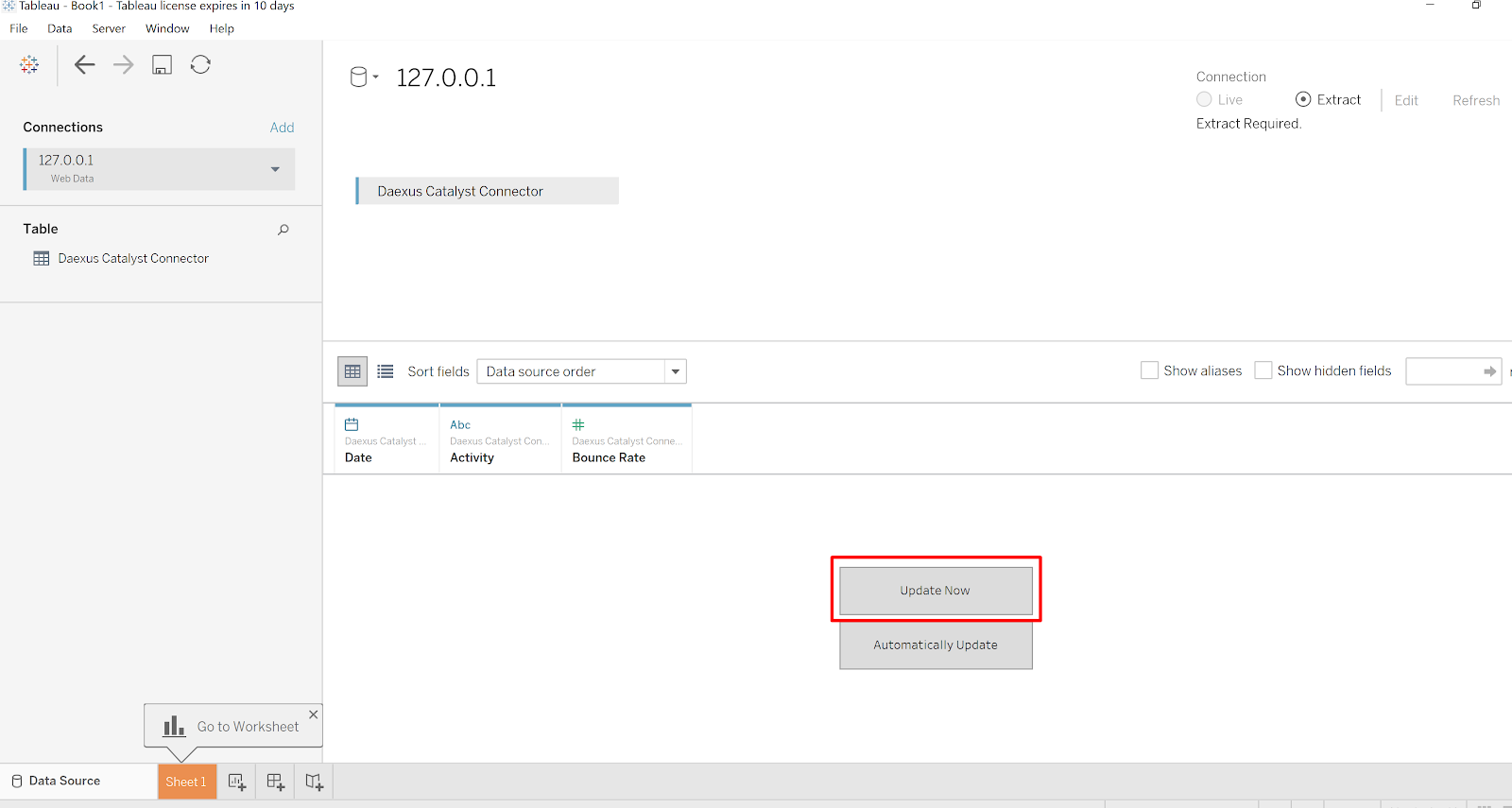
In Tableau, update your query.
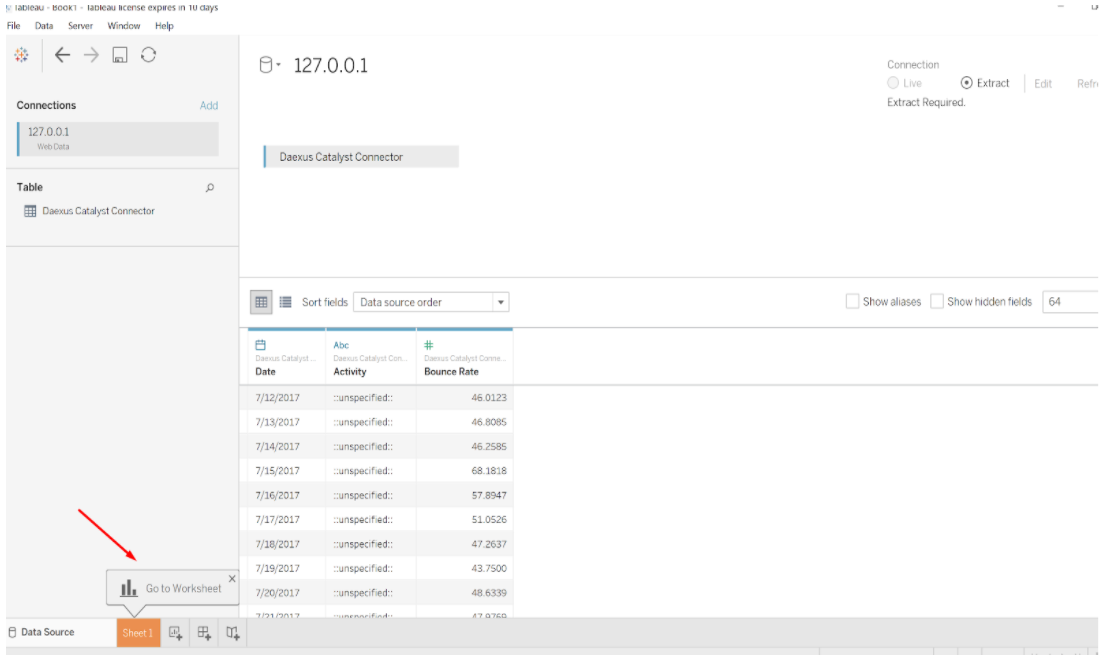
View your data in a worksheet.
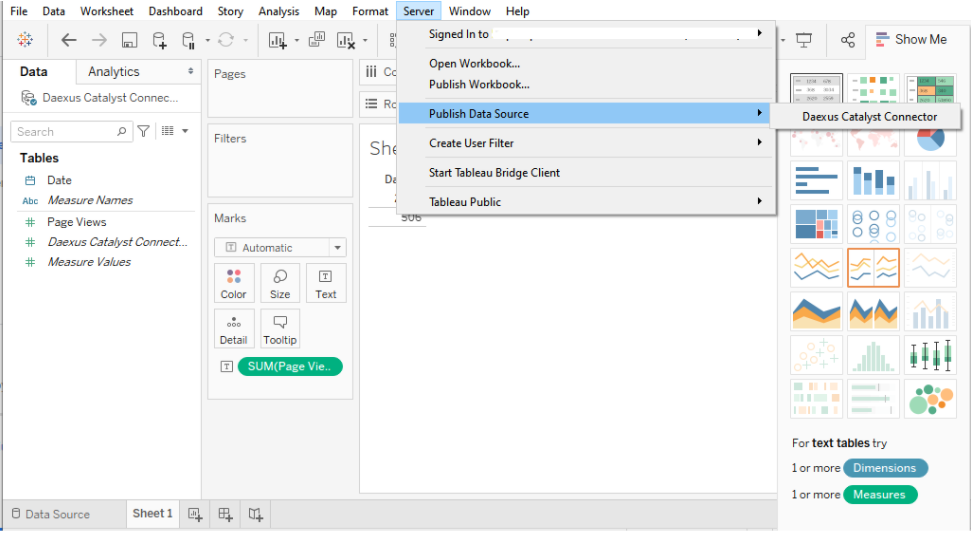
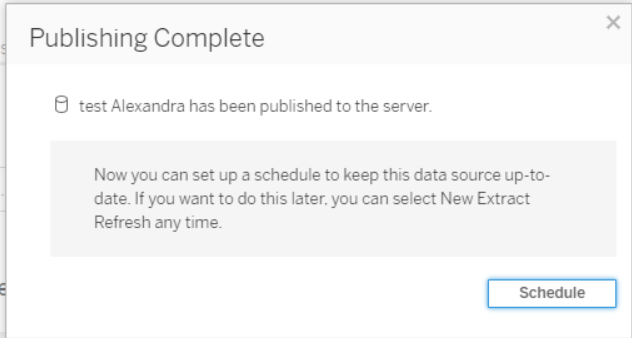
Once your data is in Tableau, publish your workbook to Tableau Online, by clicking ‘Publish Data Source’, under the Server tab
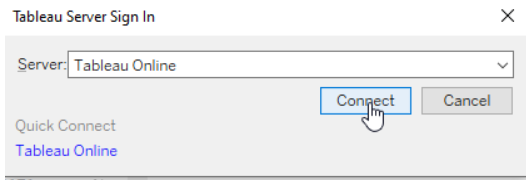
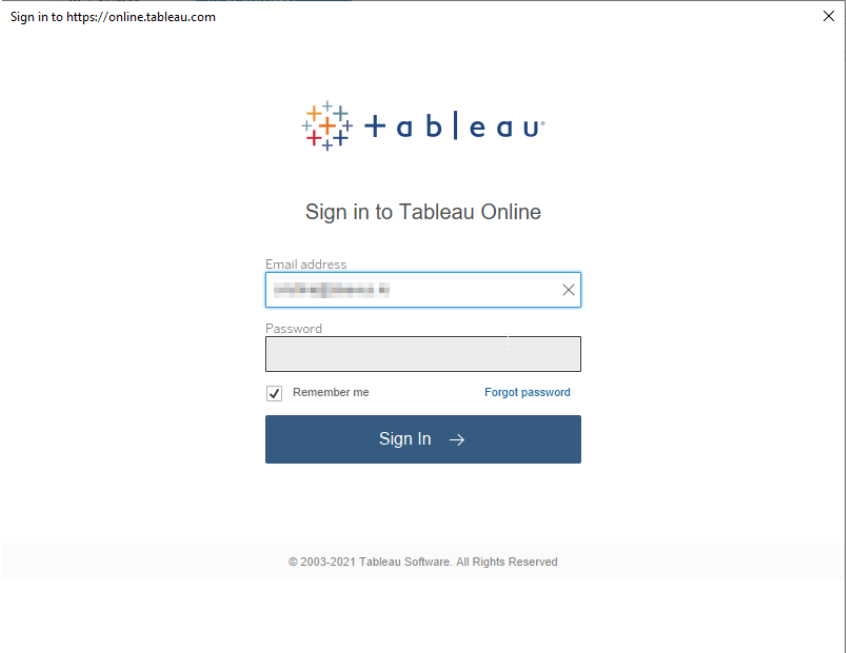
Select Tableau Online and login with your Tableau online credentials
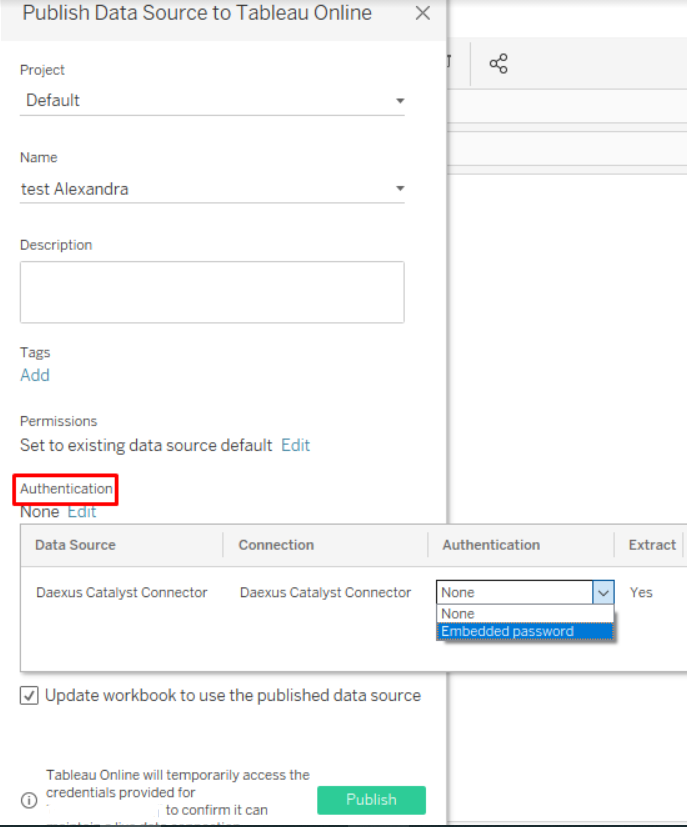
Before you publish your workbook, please make sure you embed your password and then click ‘Publish’
Close the first schedule screen
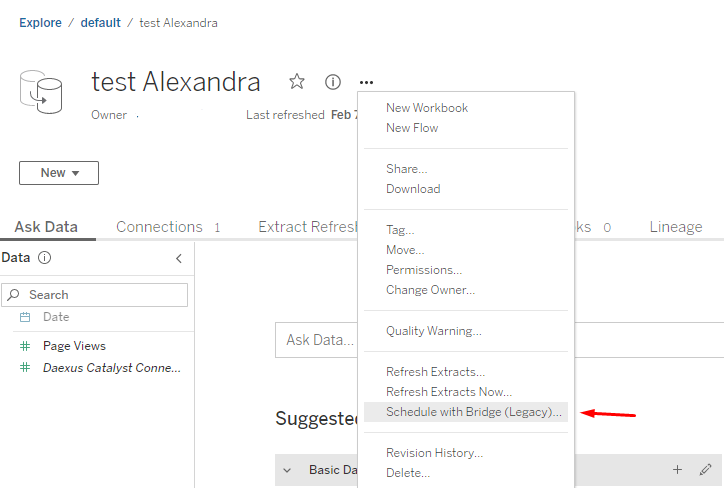
Once your data source is published, in Tableau online, click the three dots and select ‘Schedule with Tableau Bridge (Legacy)'
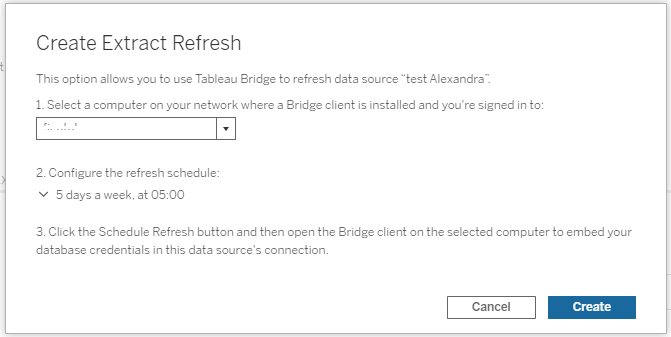
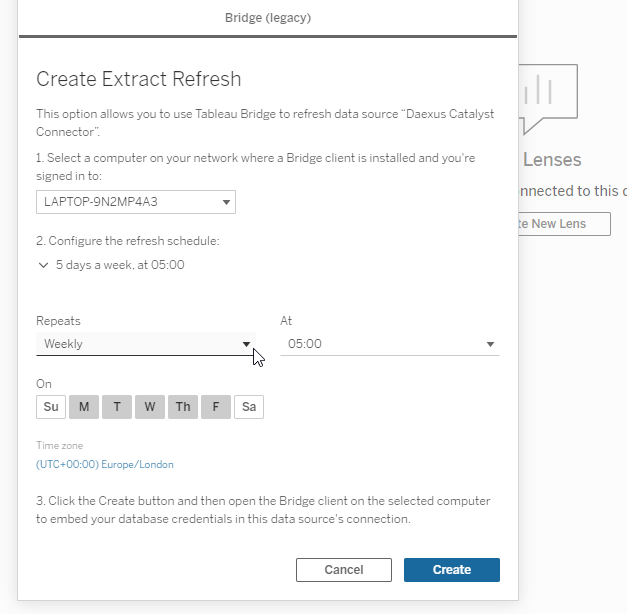
Choose a computer where you want your refresh to run on and set the schedule at step 2
Open Tableau Bridge and click on the data source you want to refresh and login with your Daexus credentials ( the same ones you used to create a Daexus account, NOT your Adobe Analytics credentials), click 'Save'
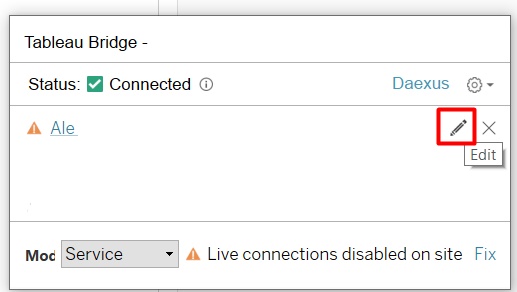
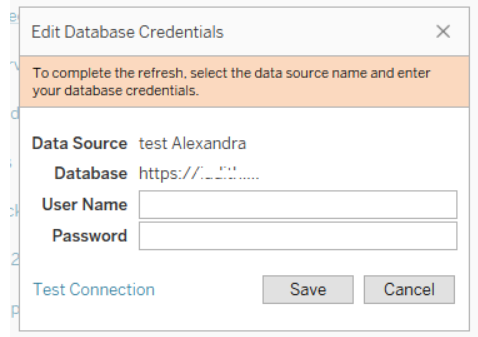
At this point, your scheduled refresh is set and if you want, you can also run (quick) refresh as shown here
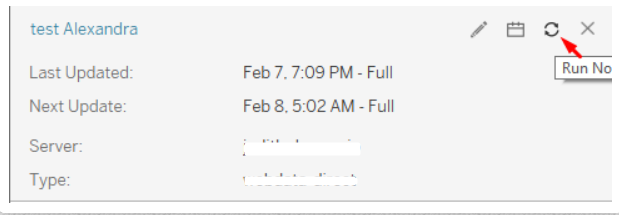
To see the status of your refresh, just click on the workbook title